Linux has surpassed 10% of desktop OS market share in North America for the first time 🎉 (update: Linux usage jumped to a high of 22% one workday, when people were back after the 4 July holiday). Linux already has a huge market share in server OS, cloud workloads, and even the top 500 supercomputers worldwide are powered by Linux, mainly because of its stability and performance.
With all the AI/Copilot/Recall bloatware and telemetry/spyware in Windows, and gated quirks, sluggishness and gaming-unfriendliness of macOS, it's the best time to move to Linux.
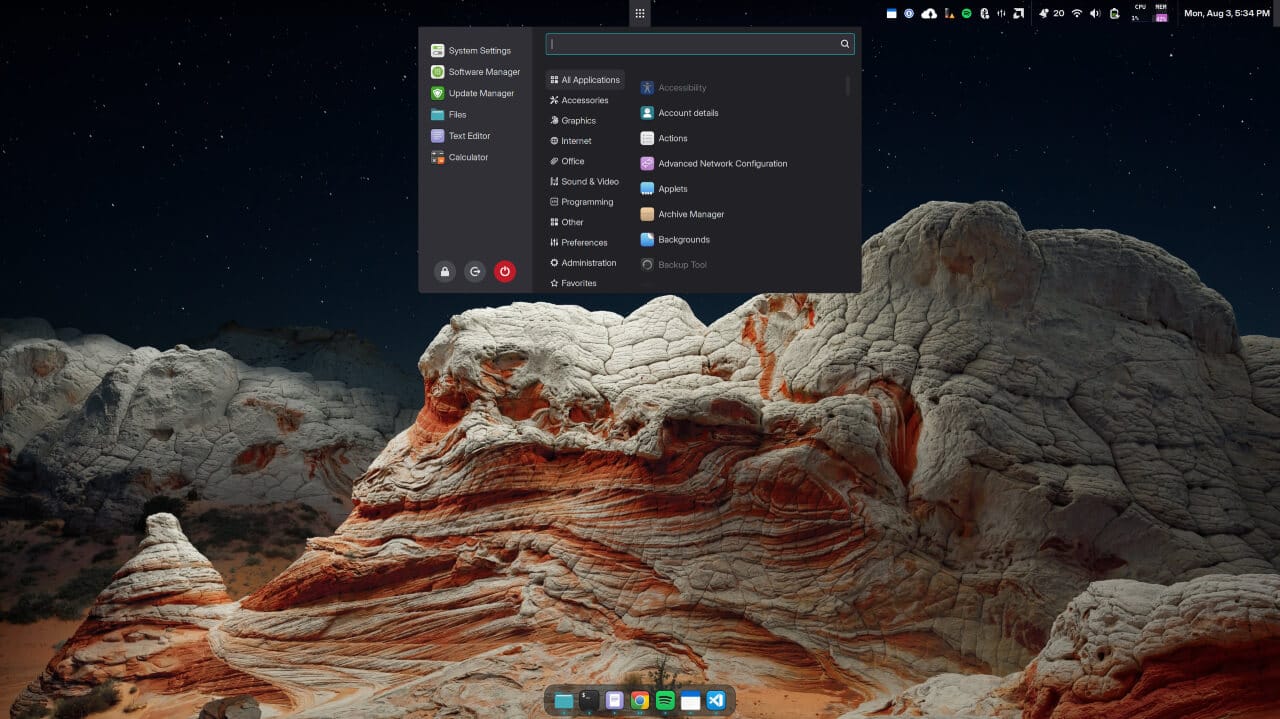
Linux is technically a kernel or core software. It's free, open-source, reliable, and fast. For a usable standalone desktop OS, it's bundled in a distribution (aka distro) with a shell or GUI (aka desktop experience or DE), tools, packages and drivers. There are many Linux distros, and most of them have come a long way in offering a modern and polished experience. My choice for a good balance is Linux Mint Cinnamon (DE). You can try out many other distros online on DistroSea, without even installing them.
Here's a simple step-by-step guide for Windows users on how to easily and safely replace Windows with Linux Mint as your daily driver at home or office:
1) Make a list of all the important apps you currently use on Windows. Most of them should have Linux compatible releases. If not, search for an alternative app for Linux Mint (commonly available for Ubuntu/Debian, as Mint is based on them). Some common app alternatives are listed at the end of this post.
2) Backup all your existing data and documents to a USB flash drive and a cloud drive.
3) Download Linux Mint (ISO), and make a separate bootable USB for it.
4) Plan your disk partitions. Ideally two partitions are enough, one mounted to root (/) for the OS and apps, and other mounted to /home for your data and documents. Specify the partitions in the next step during installation.
5) For a hassle-free installation, disable Secure Boot and Fast Boot options in your computer BIOS. Then, boot from the USB flash drive, and follow the prompts to install Linux Mint on your main drive (warning: it will erase all data, but you can choose to keep Windows as a dual-boot option).
6) After installation, update the system using Update Manager or Terminal command (sudo apt update && sudo apt upgrade).
7) Install all the necessary apps you need from Software Manager, or official app websites. Linux Mint (based on Ubuntu and Debian base) has apps available in different formats: Flatpak (preferred), DEB packages (traditional), AppImage (single portable file).
8) Update the display driver (specially if your computer has Nvidia graphics) using Driver Manager.
9) Enable the firewall (ufw) using Firewall Configuration or Terminal command (sudo ufw enable).
10) Restore your backup data and documents.
11) Enable system recovery using Timeshift (pre-installed) to backup-restore system files on a local drive or partition. Enable local or remote data backups (recommended) using Kopia or Vorta for Borg.
12) Install some cool utilities (optional) like Howdy (Windows Hello style facial authentication; may also require linux-enable-ir-emitter), TLP (laptop power usage optimization), Plank Reloaded (macOS style dock), and use other common alternative apps for everyday work:
- Notepad - xed (pre-installed), Standard Notes
- PDF Reader - Document Viewer (pre-installed), Firefox for signing
- PDF utils - Document Scanner (pre-installed), pdfsam
- Microsoft Office - OnlyOffice or LibreOffice
- Photos - Photo Viewer (pre-installed)
- Paint - Pinta, Photopea
- Media player - VLC
- Network file sharing - LocalSend
- Snipping Tool - Screenshot (pre-installed)
- Color picker - Coulr
- Audio/Sound enhancement - Easy Effects and EasyEffects-Presets
- VPN - WireGuard (pre-installed), Tailscale
- Logitech Options+ - Solaar
- SQL Server Management Studio - DBeaver
- LINQPad - NetPad
- File diffs - Meld
If you get stuck or need any help, just ask ChatGPT or the Linux Mint community forums.
Enjoy Linux!